Popular Places
Overview
Popular Places is a paid feature.
The Popular Places feature in OsmAnd highlights notable landmarks and attractions using open structured data from Wikidata and Wikipedia. It helps users explore well-known destinations with multilingual descriptions and photos.
Each place included in this feature is linked to a Wikidata ID, which enables OsmAnd to display verified names, preview images, and links to Wikipedia articles. This tool does not show all OpenStreetMap (OSM) points. It is limited to POIs with Wikidata references.
Currently, the curated database includes approximately 50,000 to 150,000 top-rated places globally, selected from over 1 million Wikidata + OSM objects.
This is the first version of the Popular Places feature. Feedback is welcome on GitHub.
- Android


Data Sources
Popular Places are based on structured content from Wikidata and Wikipedia.
Only POIs with a linked Wikidata ID are displayed. These IDs connect map objects to verified names, descriptions, and images.
You can view the Wikidata link directly in the Map Context Menu. Tapping the Wikidata tag opens the full object page on the Wikidata website.
Images and other Wikidata-based content in Popular Places are refreshed on a schedule and may not appear immediately after changes in Wikidata or Wikimedia Commons. Current refresh frequency: twice a month — on the 10th and 20th.
Learn how to find a Wikidata ID: Wikipedia: Finding a Wikidata ID
How to Use
The Popular Places feature includes both a curated list of nearby landmarks and a layer of Wikipedia-based POIs on the map.
There are two main ways to access this feature:
-
Free version
Access via Search to explore nearby places in list view.
Android only. Go to: Search → Explore → Popular places nearbyThis Explore list shows popularity-ranked Wikipedia/Wikidata places near you and works online. It displays up to 50 places. Because Explore/Wikipedia results are rating-ranked, the ordering in these results may differ from regular POI search.
-
Paid versions (Maps+ and OsmAnd Pro)
Enable the visual overlay in the Configure Map.
Android & IOS. Go to: Menu → Configure map → Popular places (Wikipedia)In this mode, popular POIs appear directly on the map with thumbnail previews and Wikipedia content.
You can switch between online and offline Wikipedia sources in the overlay settings. Learn more in Enable Layer.
Explore in Search
This feature is currently not available for the iOS version of the OsmAnd app.
- Android
Go to: Search → Explore → Popular places nearby


The Popular places nearby section displays a scrollable list of top-rated landmarks near your current location. Each item includes:
- Name of the place.
- Short description.
- POI category tag.
- Distance and direction.
- Thumbnail image (if available).
Tap Show All to view the full list, or Show on Map to display all listed POIs on the map.
Tapping any place opens the POI context menu, where you can preview photos and access related Wikipedia content.
The search-based Explore Mode works online only in the free version.
To use it offline, you need a Maps+ or OsmAnd Pro subscription and downloaded Wikipedia maps.
Enable Layer
- Android
- iOS
Go to: Menu → Configure map → Popular places (Wikipedia)

Go to: Menu → Configure map → Popular places (Wikipedia)
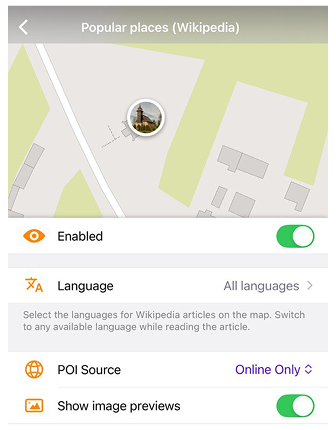
The Popular Places (Wikipedia) feature is available in the Configure Map menu. To display popular places directly on the map, enable the POI layer with data from Wikipedia using Wikidata images.
Before using this feature:
- Make sure the Wikipedia Plugin is enabled.
- Download Wikipedia data for your region if you want to use it offline.
Layer Options
Once enabled, the following options become available:
-
Popular places (Wikipedia) – Toggle Wikipedia POIs on the map.
-
POI Source – Switch between:
- Offline Only mode — uses downloaded Wikipedia map data for your region.
- Online Only mode — loads places and image previews online. Online results may depend on your selected language settings.
-
Language – Select the language for Wikipedia descriptions.
-
Show image previews – Show image thumbnails from Wikidata next to POIs. If image previews are disabled, Popular Places are shown with icons instead of thumbnails on the map. Image previews use Wikidata/Wikipedia-linked images: in Offline Only mode previews depend on the downloaded Wikipedia data, while in Online Only mode previews are fetched online.
Tapping a POI on the map opens the POI context menu, where you can view online photos and access linked Wikipedia articles.
Online Photos
Map Context menu → Online photos
- Android
- iOS


This is a section within the POI context menu that displays a photo preview of the selected Popular Place (Wikipedia). You can scroll horizontally to browse through the available photos, or tap any image to open it in full screen mode.
Images viewed online are automatically cached for offline access. Cached photos display a small offline badge in the corner. The preview grid adapts to the screen size on iPadOS and macOS, ensuring comfortable image layout on larger displays. OsmAnd also avoids triggering repeated network requests when the Online Photos section is closed, and cancels previous requests when switching quickly between different POIs.
Gallery
- Android
- iOS


The Gallery Menu can display up to 100 images related to the selected point of interest. To view these images, tap Show All (Android) / View All (iOS). You can swipe through all available photos. Tapping a photo briefly opens a detailed view showing: Name, Date added, Author, License.
On iOS, iPadOS, and macOS, you can navigate photos using keyboard keys (←/→ to move between images, Enter/Space to open).
You can also perform the following actions on each photo:
-
Share
Share the selected image using any compatible app installed on your device (e.g., messaging, email, or social media). The shared content includes the image and its source link (if available). -
Details
Open a detailed view showing metadata about the image, including: Name, Date added, Author, License, Source, and Direct link -
Open in browser
Launch the image’s source page (usually on Wikimedia Commons) in your default browser. This allows you to view the full image, licensing information, and related content. -
Download
Save the image to your device’s storage. The downloaded image can be found in your device’s default Downloads folder and accessed offline.
Note: Download saves the image to the device’s storage for permanent offline use, while cached photos are stored automatically and available offline only within the app.